

One of the most common reasons WordPress sites get hacked isn't a weak password—it's poor file permissions. Monitoring logs often reveals bots probing for writable directories to upload malicious scripts.
If your permissions are too loose (e.g., 777), you are essentially handing keys to the intruder. If they are too strict, plugins break and images won't upload.
Here is the definitive guide to WordPress file permissions.
🔐 The Golden Rule: 755 and 644
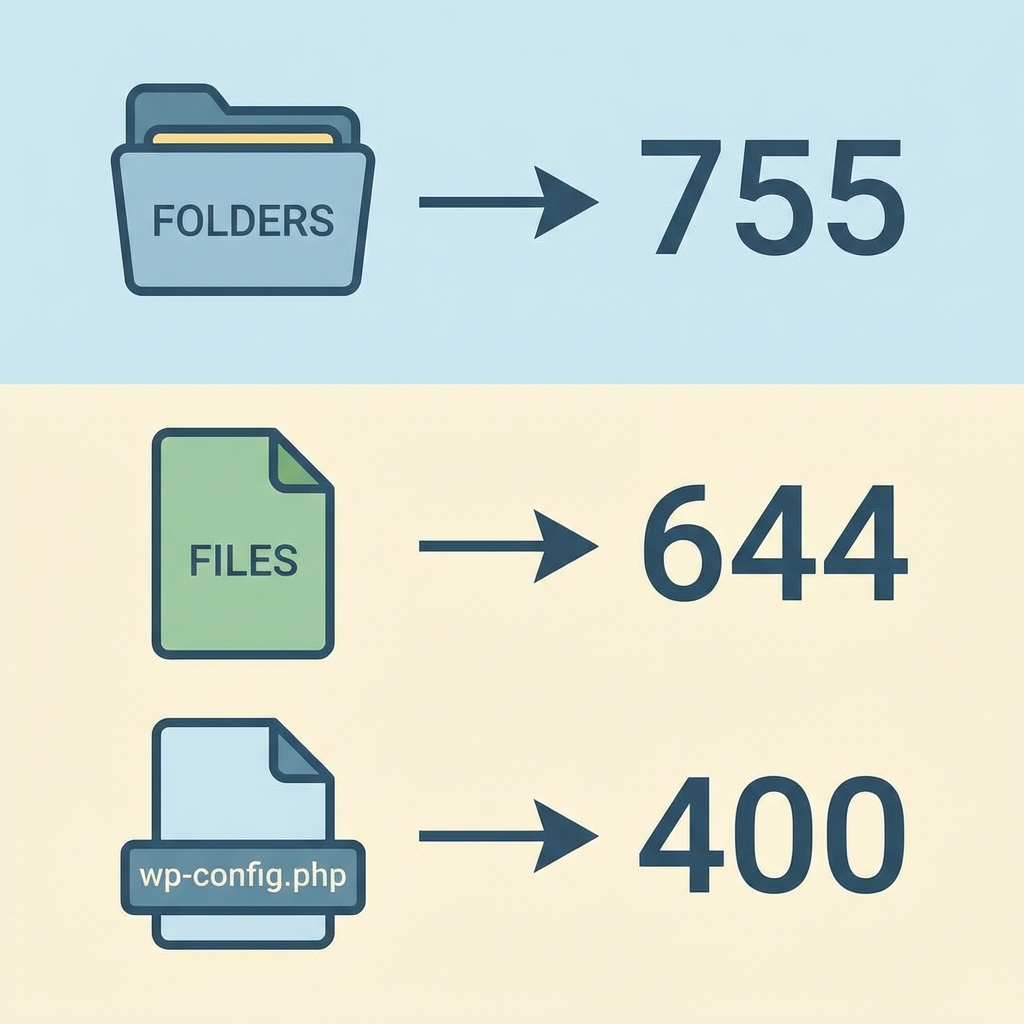
The standard secure setup for WordPress is simple:
- Folders (Directories):
755 - Files:
644
What Do These Numbers Mean?
Permissions are a set of three numbers (e.g., 7-5-5), representing:
- Owner (You/Server User)
- Group (Other users in the same group)
- Public (Everyone else on the internet)
Each number is a sum of:
- 4 = Read (View file)
- 2 = Write (Edit/Delete file)
- 1 = Execute (Run script)
Decoding 755 (Folders)
- Owner (7): Read (4) + Write (2) + Execute (1) = Full Control.
- Group (5): Read (4) + Execute (1). Cannot Write.
- Public (5): Read (4) + Execute (1). Cannot Write.
Why this matters: It allows WordPress to create folders (like for new uploads), but prevents hackers from deleting your directories.
Decoding 644 (Files)
- Owner (6): Read (4) + Write (2). No Execute.
- Group (4): Read (4).
- Public (4): Read (4).
Why this matters: It lets WordPress read PHP files to run the site, but prevents external users from modifying the code.
🛑 The "wp-config.php" Exception
Your wp-config.php file contains your database password and salt keys. It is the most sensitive file on your server.
Recommended Permission: 400 or 440
This means ONLY the server can read it. No one else has permission to do anything.
⚠️ NEVER Set Permissions to 777
Setting a folder to 777 means anyone in the world can write, delete, and execute scripts in that folder.
If you set wp-content/uploads to 777, a hacker can upload a backdoor.php file and take over your entire server.
Myth: "I need 777 to fix a plugin error."
Fact: No, you don't. You likely have an Ownership issue (e.g., files owned by root instead of www-data), not a permission issue.
How to Fix Permissions
Via SSH (The Fast Way)
If you have terminal access, run these two commands in your WordPress root:
# Set all folders to 755
find . -type d -exec chmod 755 {} \;

# Set all files to 644
find . -type f -exec chmod 644 {} \;
Via FTP (FileZilla)
- Right-click
wp-content. - Select File Permissions.
- Type
755. - Check Recurse into subdirectories.
- Select Apply to directories only.
Repeat for files, but use 644 and select Apply to files only.
5. The "Ownership" Puzzle
Permissions (755) are useless if the Owner is wrong.
- User: The file owner (usually your FTP username or
www-data). - Group: The generic group the user belongs to.
If your files are owned by root (because you uploaded them via SSH as root), your web server (which runs as www-data or apache) cannot edit them, even with 755 permissions.
The Fix: Ensure your web server user owns the files:
chown -R www-data:www-data /var/www/html6. Blocking PHP Execution in /uploads
Even with perfect permissions, a plugin vulnerability might allow a hacker to upload a file. You can add a deeper layer of defense by disabling PHP execution in directories that shouldn't have code.
Create a .htaccess file in /wp-content/uploads/ with this content:
<Files *.php>
deny from all
</Files>
Now, even if someone uploads malware.php, they cannot run it.
7. The "Sticky Bit" and Special Permissions
You might sometimes see a 1 or 2 at the start, like 2755 (SetGID).
- SetGID (2): Ensures that files created inside a directory inherit the group of the parent directory, not the user's primary group. This is crucial for multi-user environments where developers share folder access.
8. Automating Permission Audits
You don't have to check manually every week. Use a security plugin like Wordfence or iThemes Security.
These plugins have a "File Permissions" module that scans your core files and alerts you if anything is unsafe (like a 777 folder).
Summary
Security isn't just about plugins. It starts at the filesystem level.
- Folders:
755 - Files:
644 - wp-config.php:
400 - 777: NEVER.
Audit your site today. It takes 5 minutes and saves you from a hacked site disaster.